Getting started
Follow these quick videos to help you settle in to your MoveBank App and Online Banking.
Loan redraw
If you have a home loan with MoveBank and you're eligible for redraw, follow these steps to transfer funds from your home loan account into your MoveBank Transaction or Savings account, from Online Banking. Don't have a MoveBank Transaction or Savings account? Go to 'Accounts' and select 'New' to open one.
1. Select the 'Accounts' menu to see all your MoveBank accounts.
2. Select the loan account you wish to redraw funds from.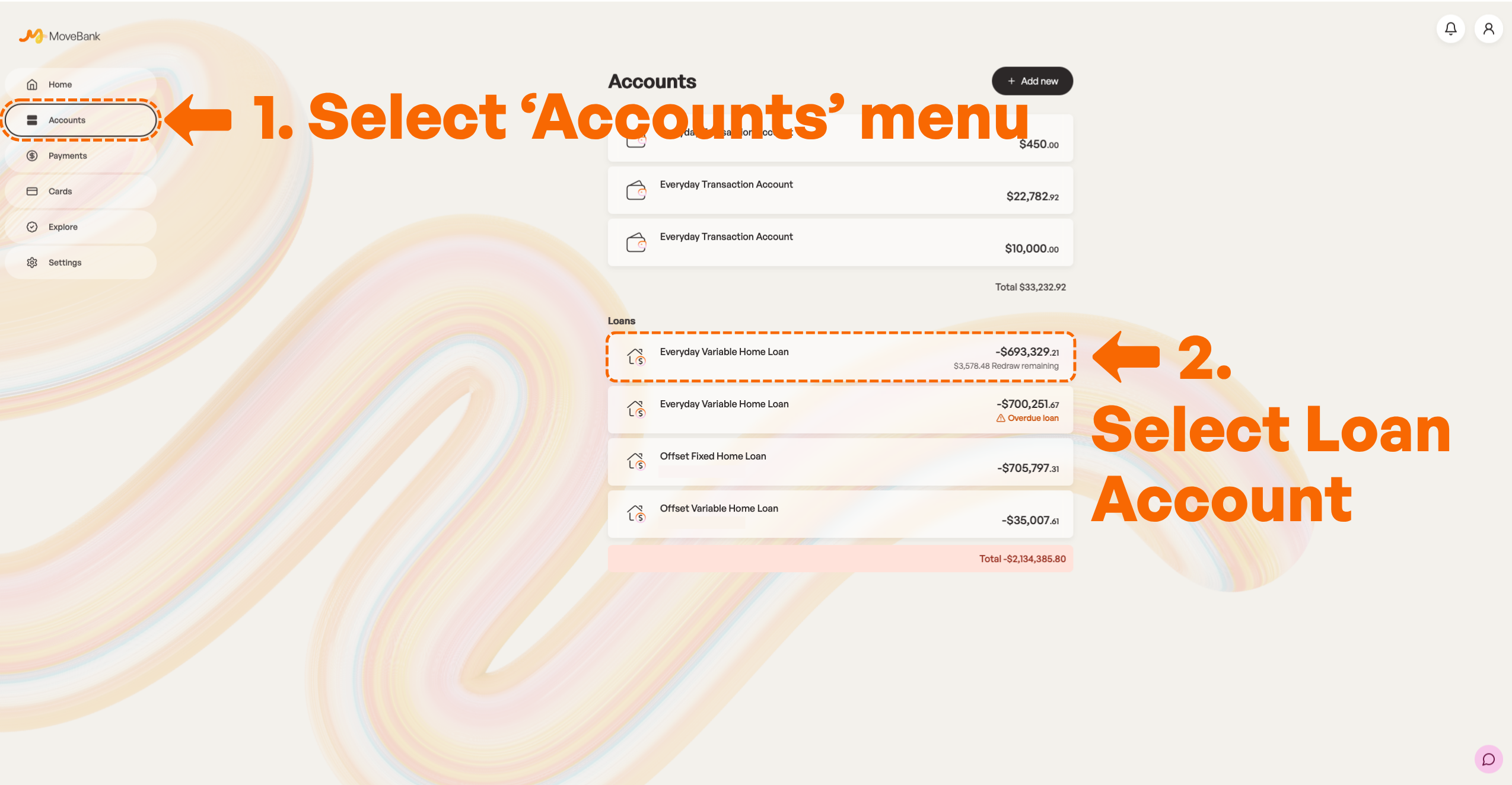
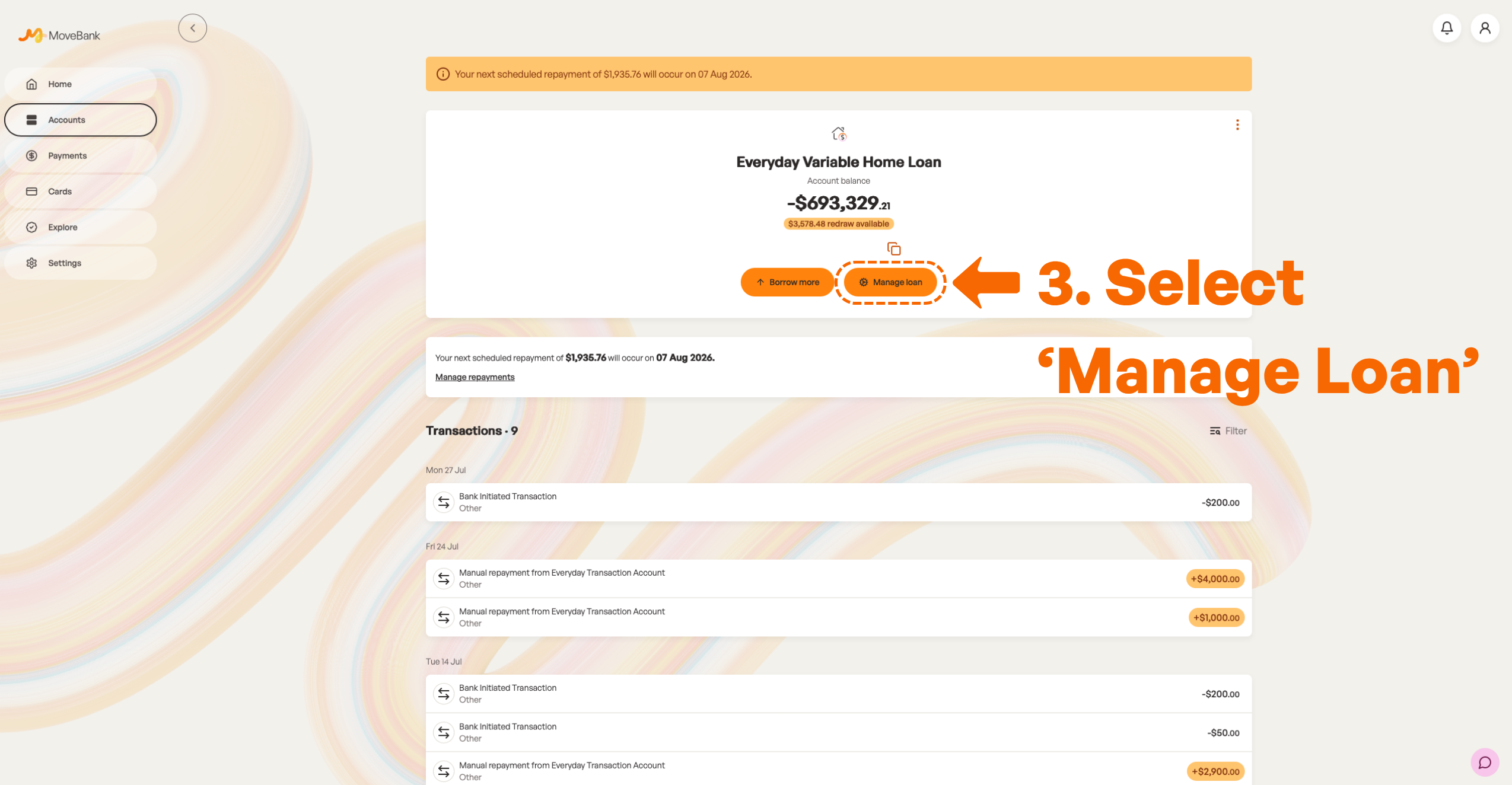
3. Select the 'Manage Loan' option.
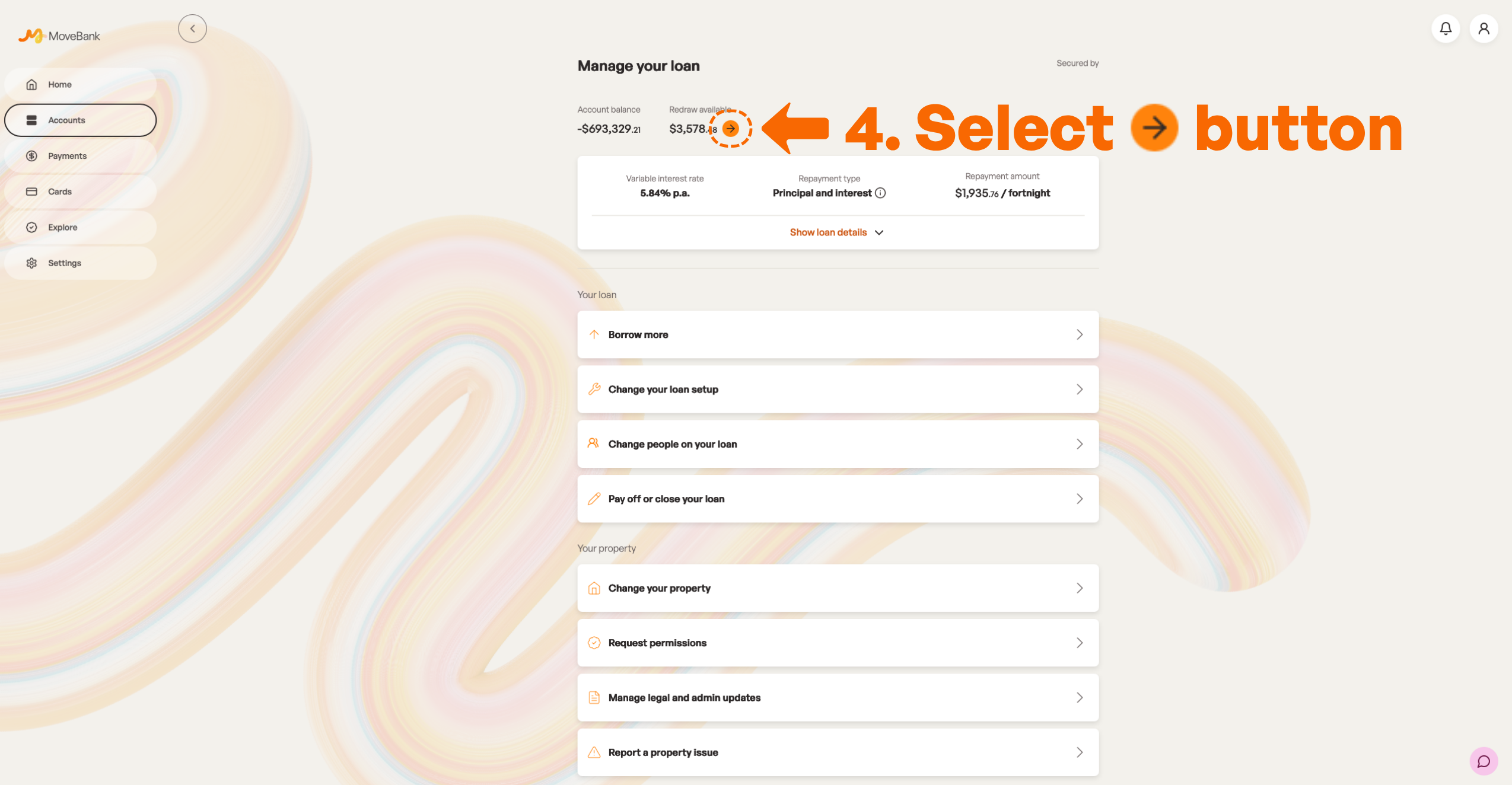
4. At the top of the screen, you'll find 'Redraw Available' showing the amount available, next to an orange arrow button. Click on the arrow button.
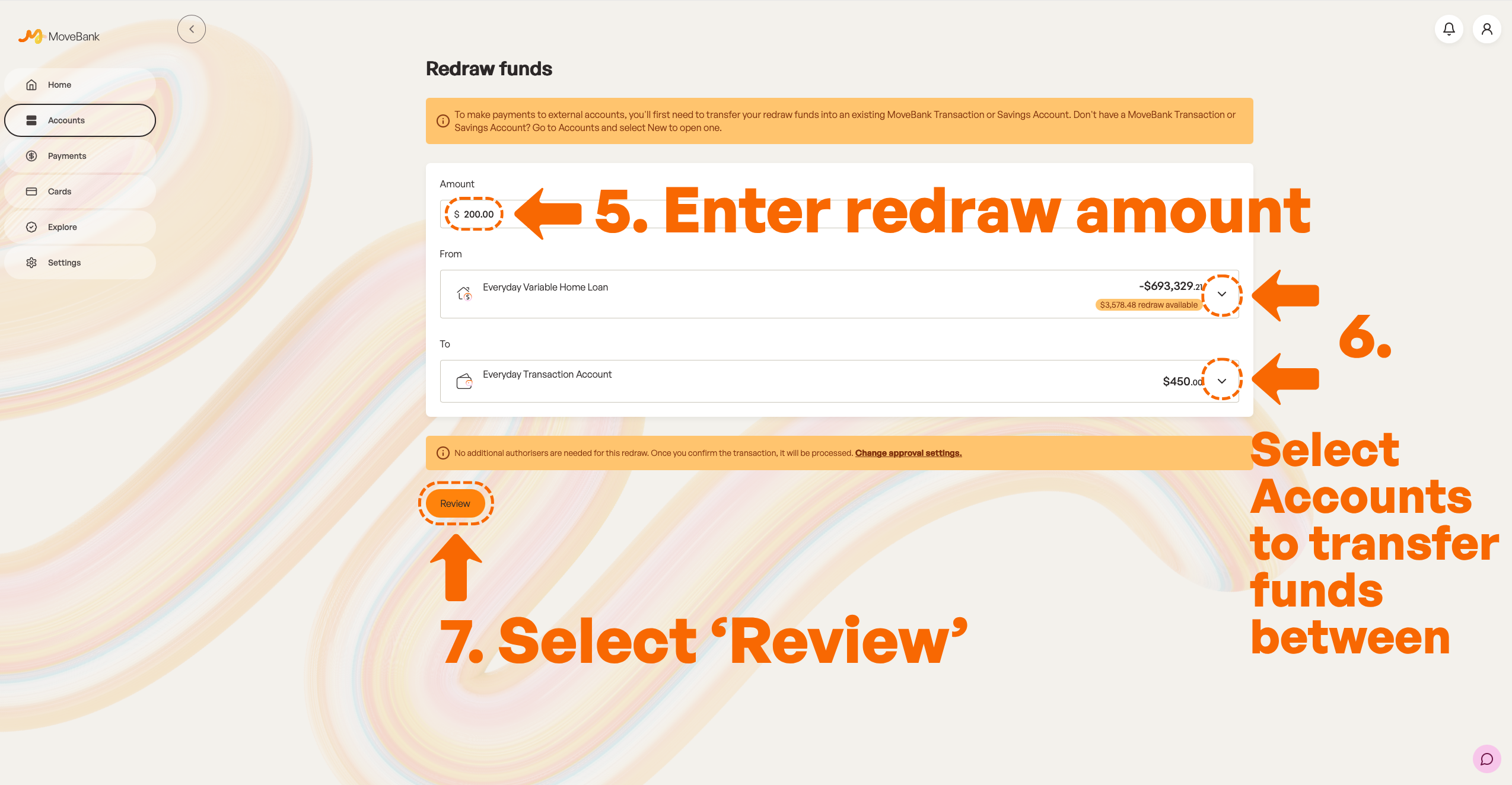
5. Enter the amount you wish to redraw.
6. Select the accounts you wish to transfer the funds from and to.
7. Select 'Review'.
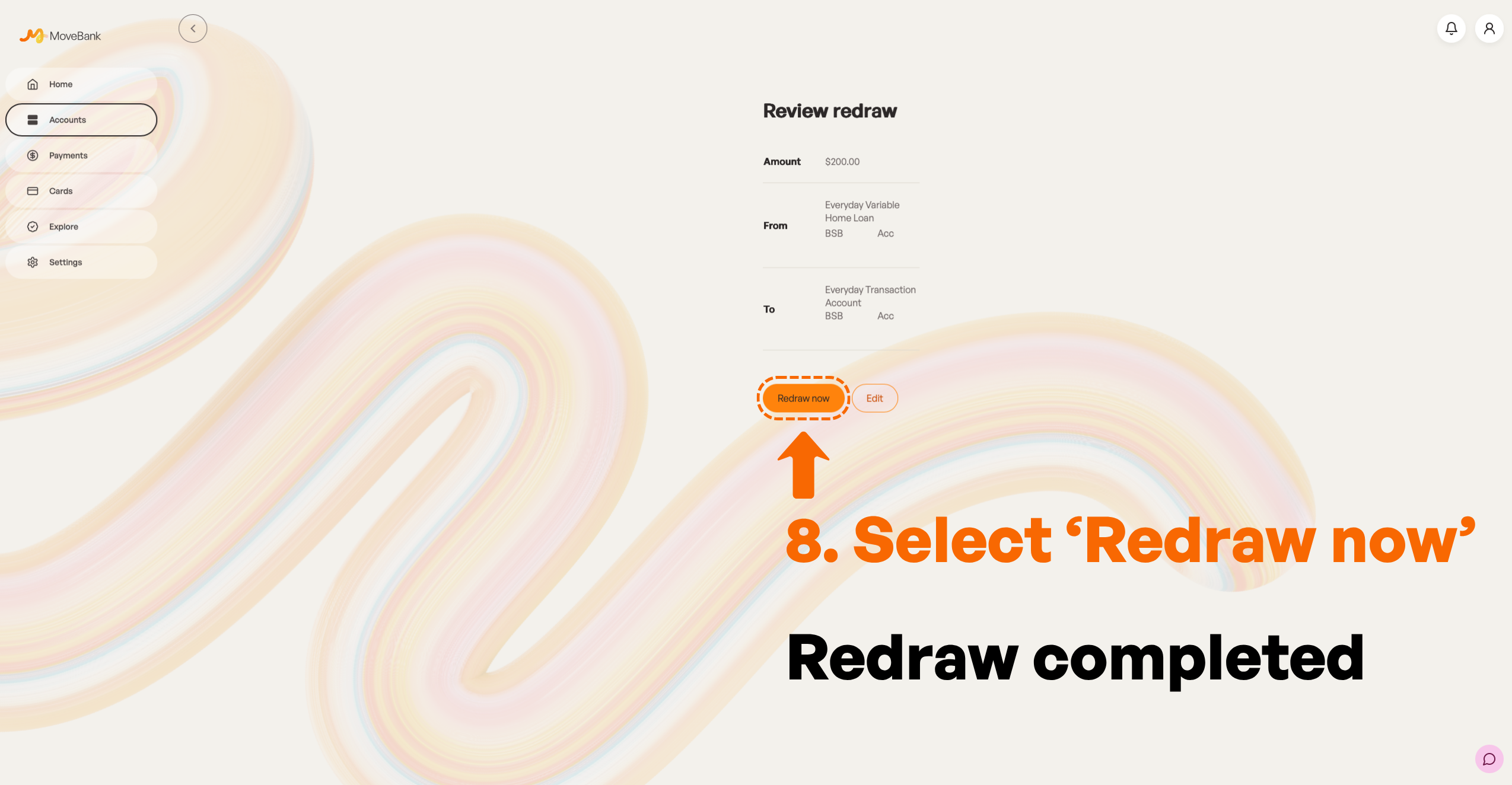
8. Review the redraw details and select 'Redraw now' to complete your redraw.
Accessing your statements
Mobile App
1. Navigate to your profile menu in the top left-hand corner.
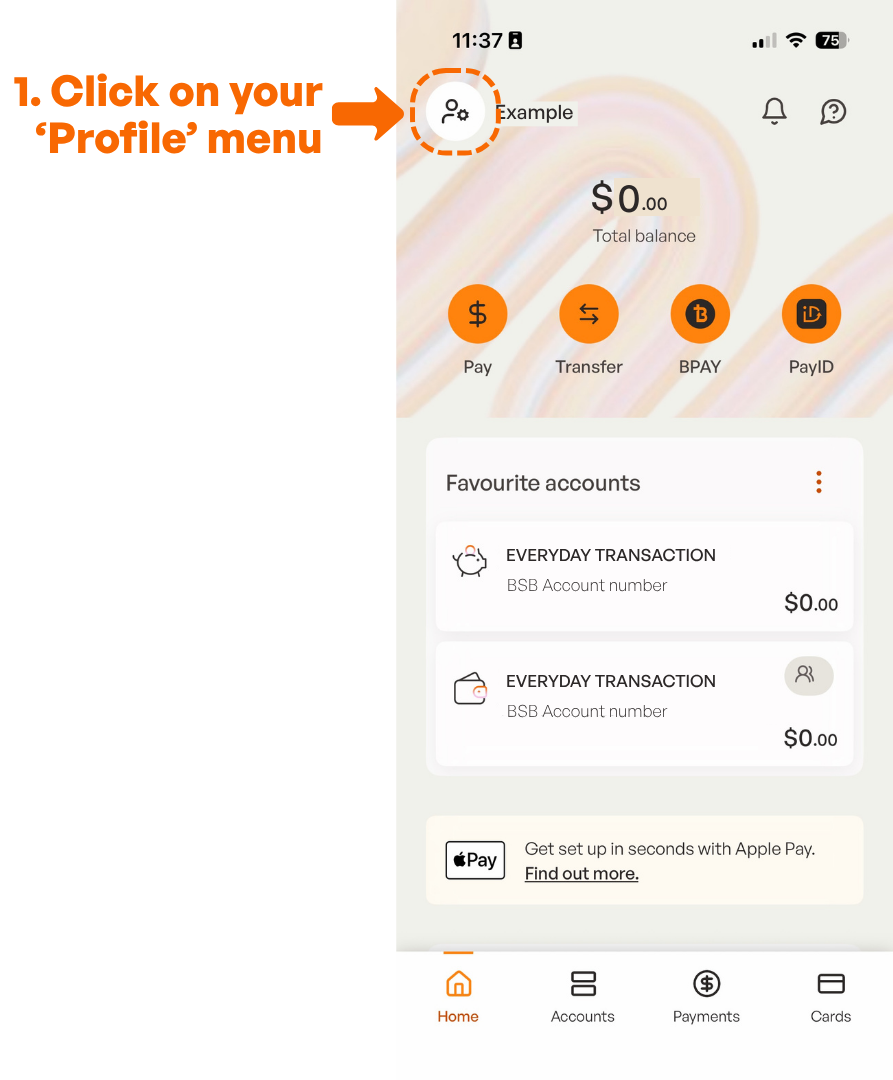
2. Select 'Statements & documents'.
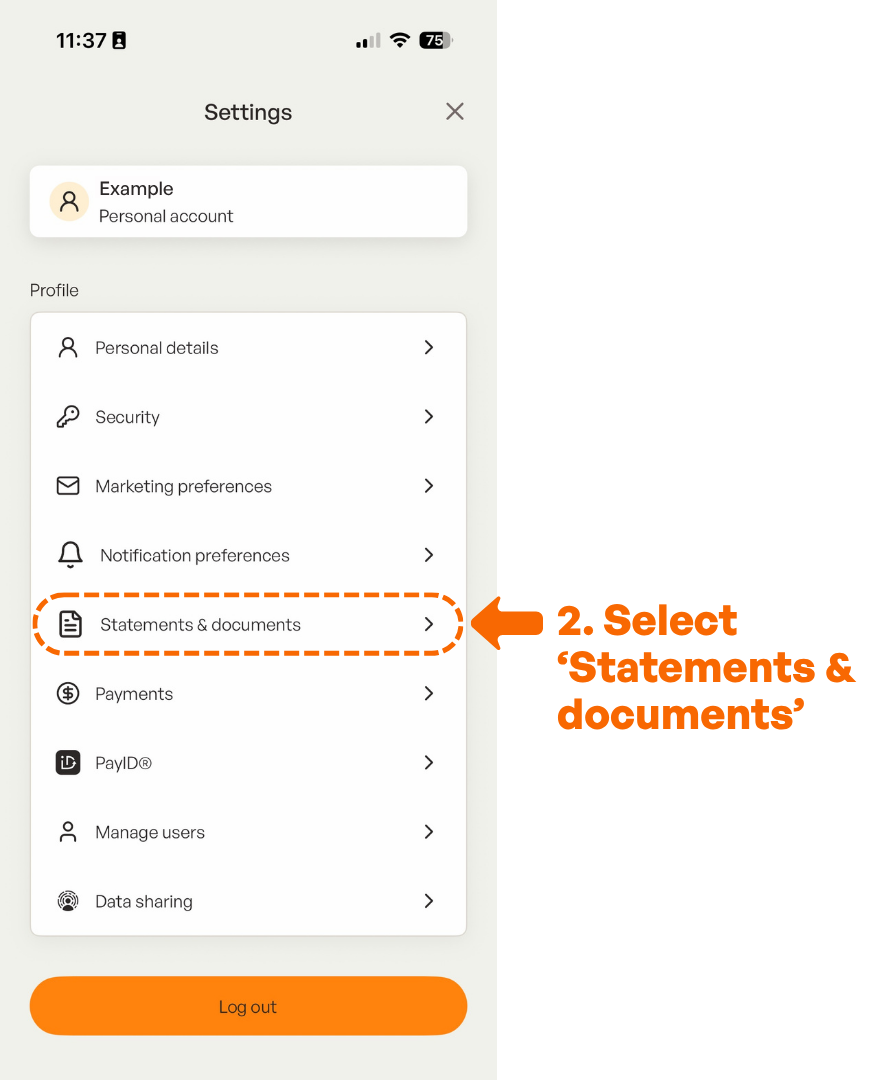
3. Select your account from the dropdown
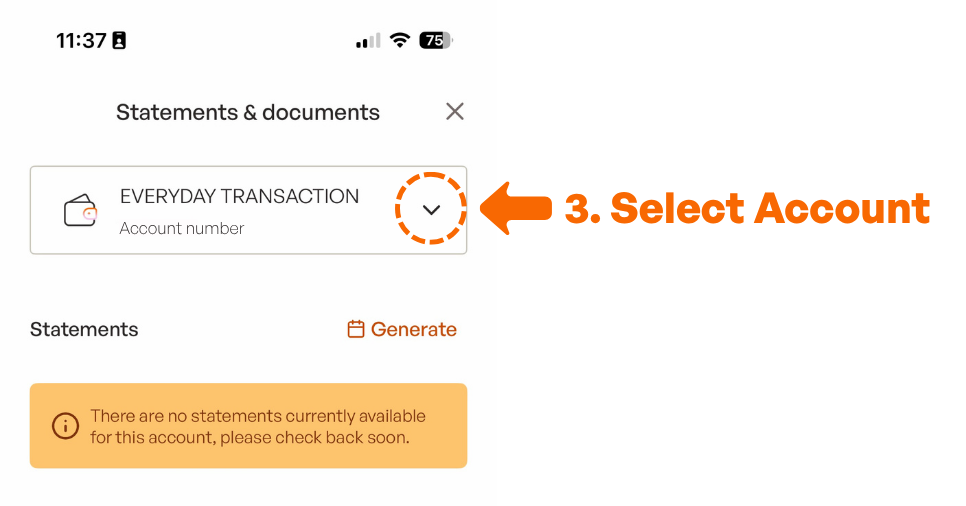
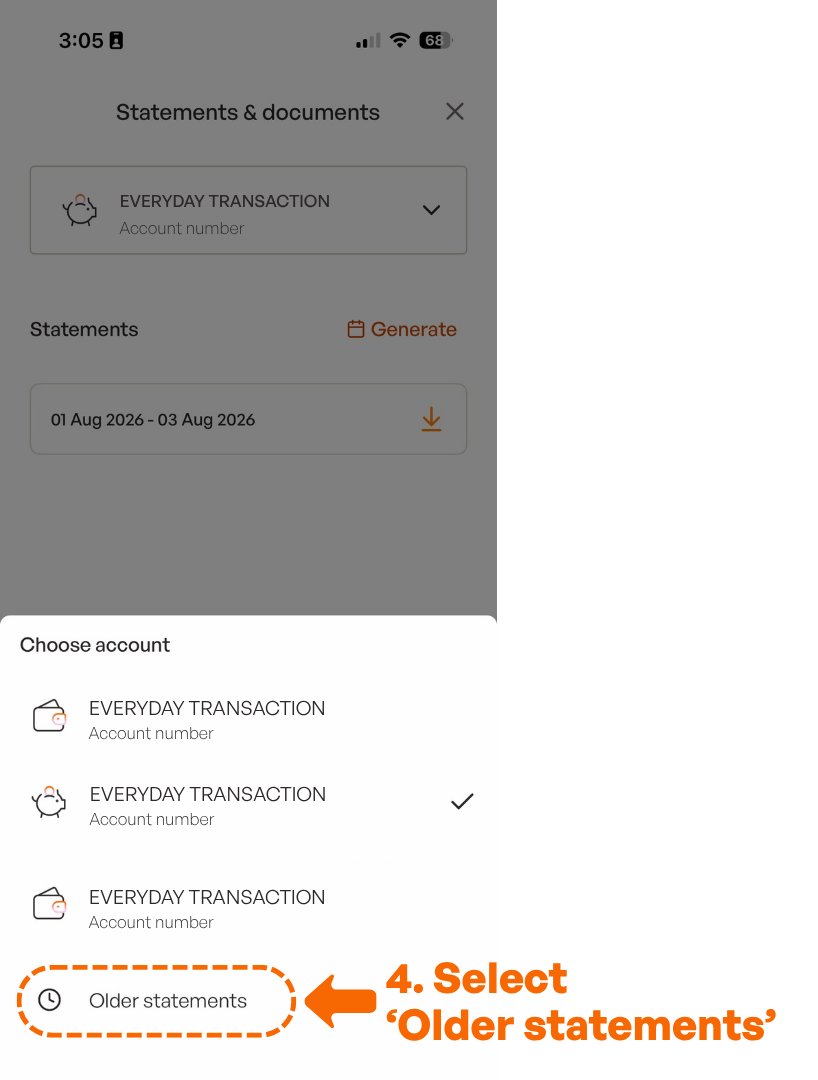
4. Select 'Older statements' to view your statement prior to 1 August 2026.
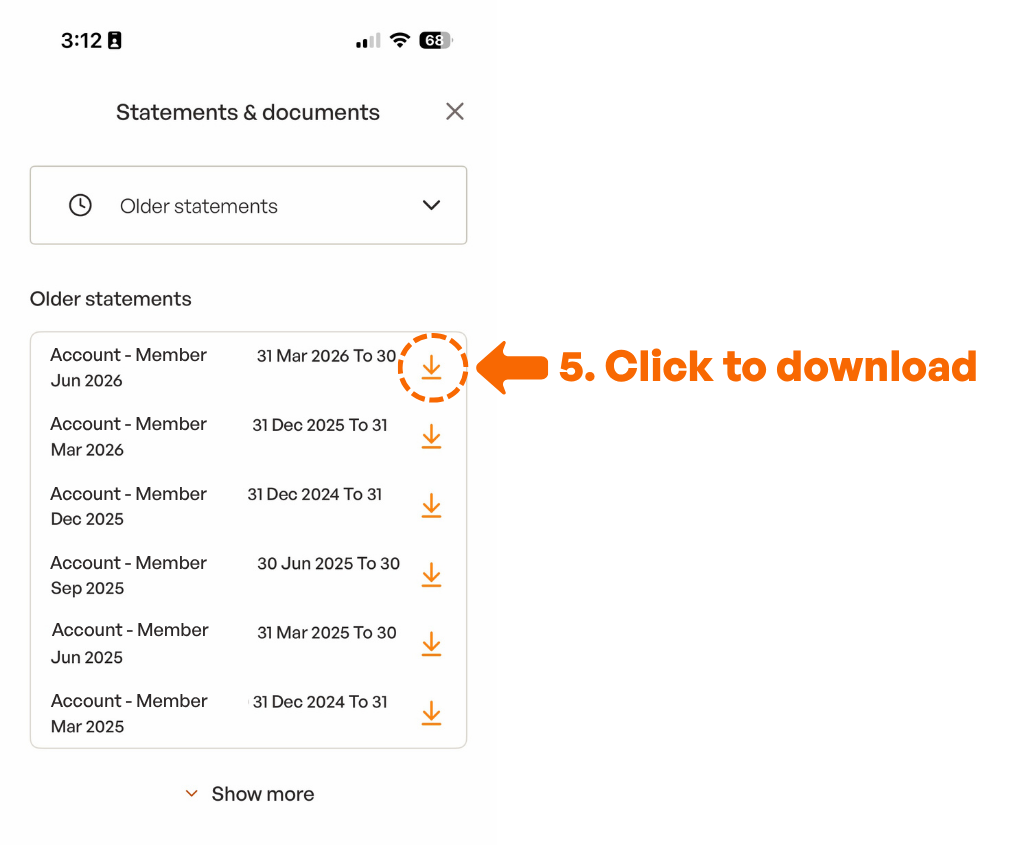
5. Click the download button to view your statement.
Online Banking
1. Navigate to your profile menu in the top right-hand corner.
2. Select 'Statements & documents'.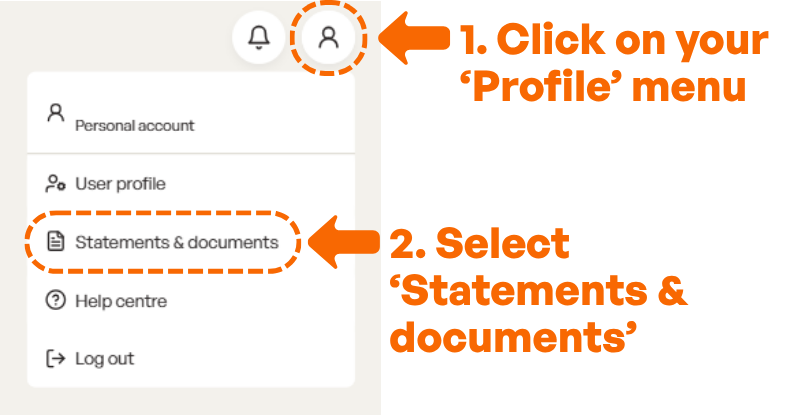
3. Select your account from the dropdown
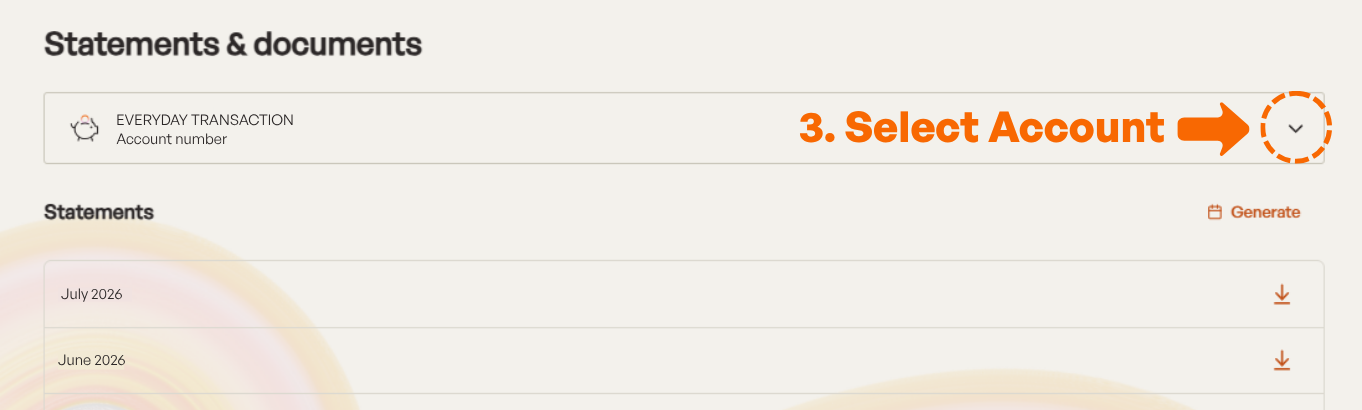
4. Select 'Older statements' to view your statement prior to 1 August 2026.
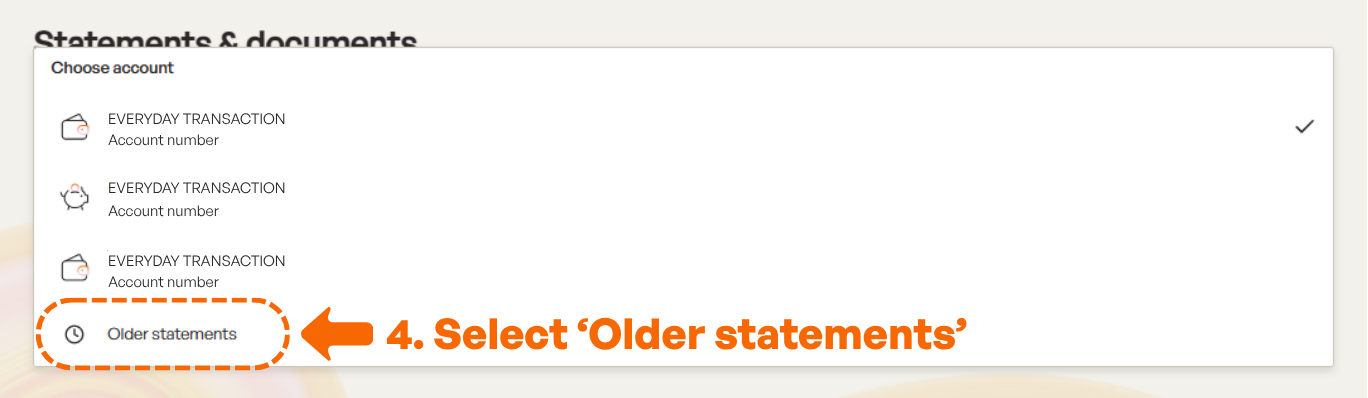
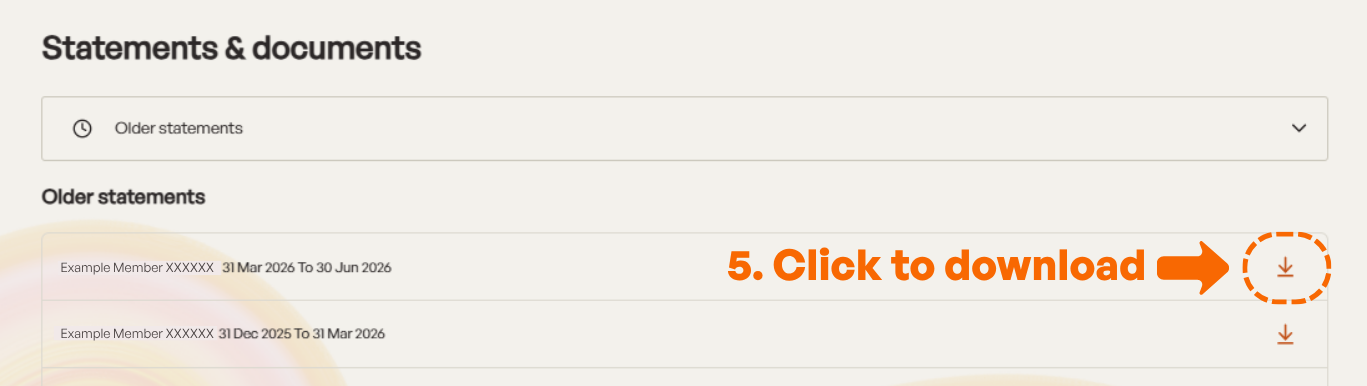
5. Click the download button to view your statement.
Mobile App
1. Navigate to your profile menu in the top left-hand corner.
2. Select 'Statements & documents'.
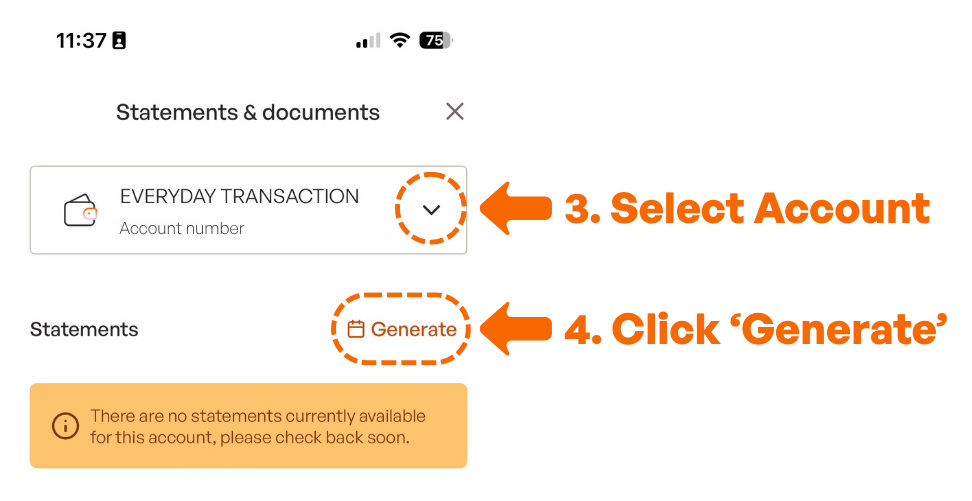
3. Select your account from the dropdown
4. Click 'Generate' to select a time period
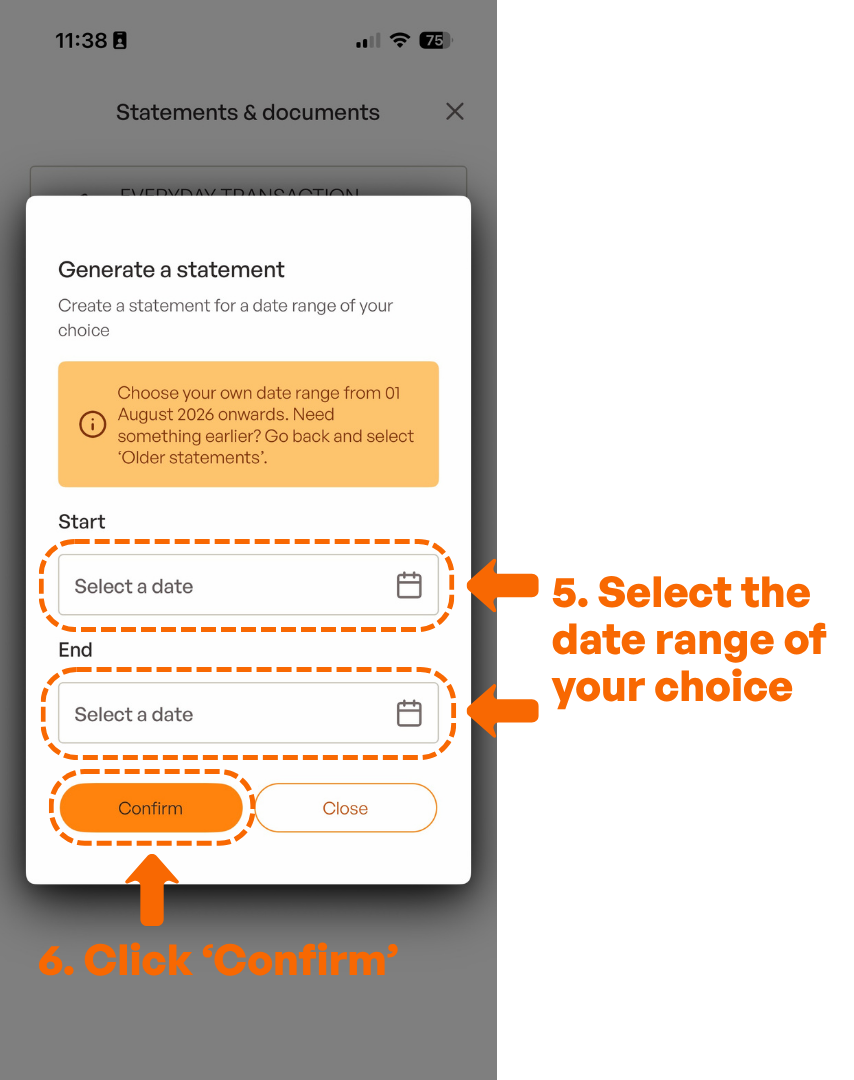
5. Select the start date and end date for the time period you require your statement to cover.
6. Click the 'Confirm' button to generate your statement.
Online Banking
1. Navigate to your profile menu in the top right-hand corner.
2. Select 'Statements & documents'.
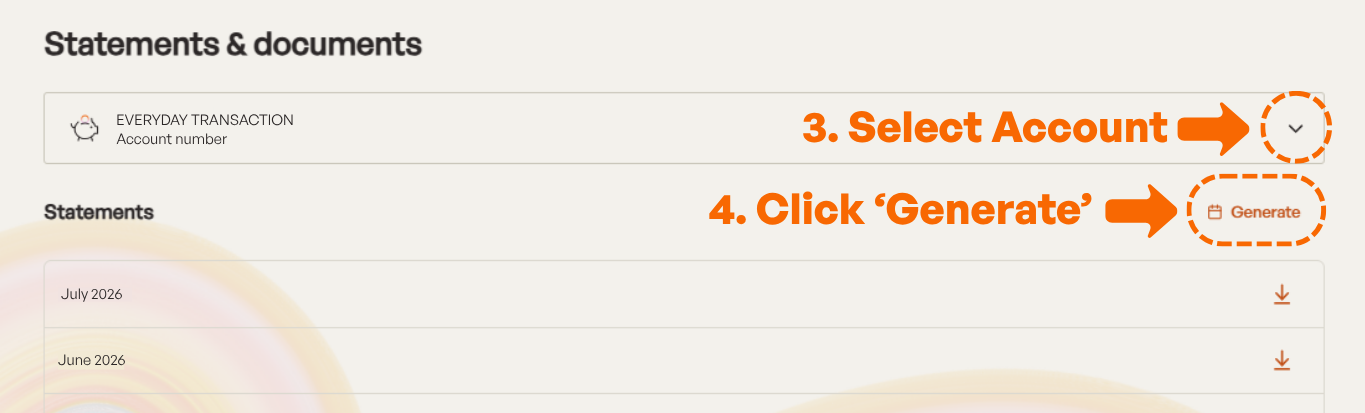
3. Select your account from the dropdown
4. Click 'Generate' to select a time period
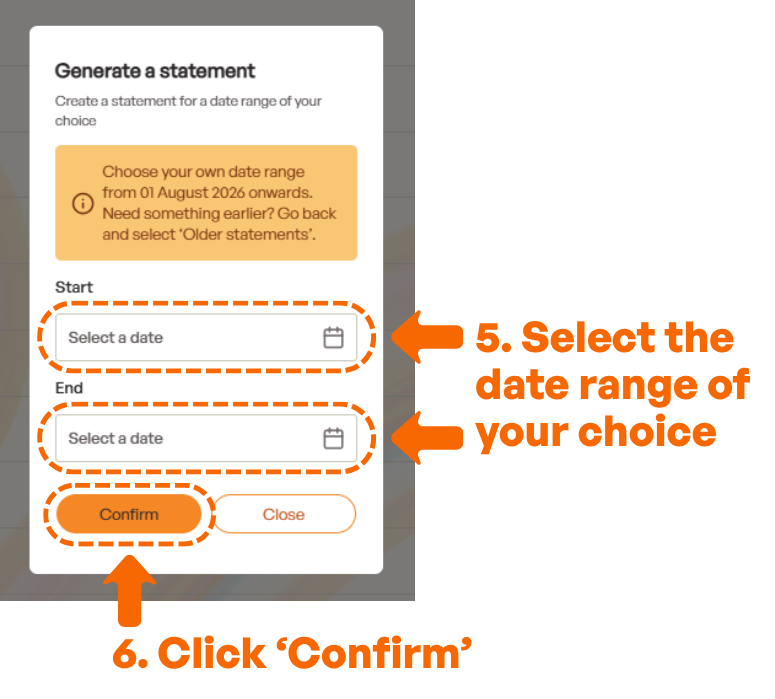
5. Select the start date and end date for the time period you require your statement to cover.
6. Click the 'Confirm' button to generate your statement.
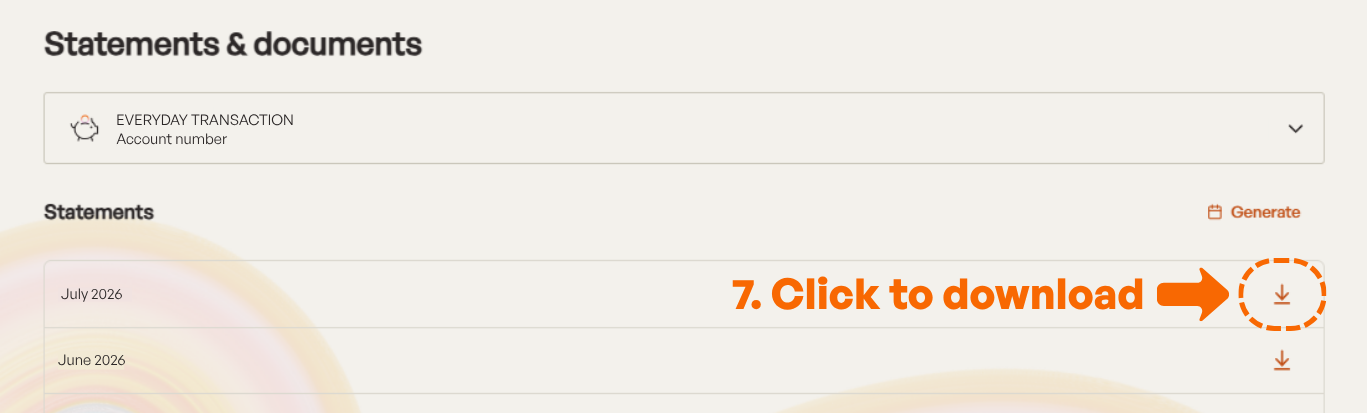
7. Click the download button to view your statement.